Last week, we focused on clearing the digital clutter through unsubscribing and archiving. Today, we move from the cleanup to the construction of a better system. Whether your inbox is currently chaotic or freshly cleared, the goal is to build a structure that handles community commitments, client needs, and family logistics without competing for your attention.
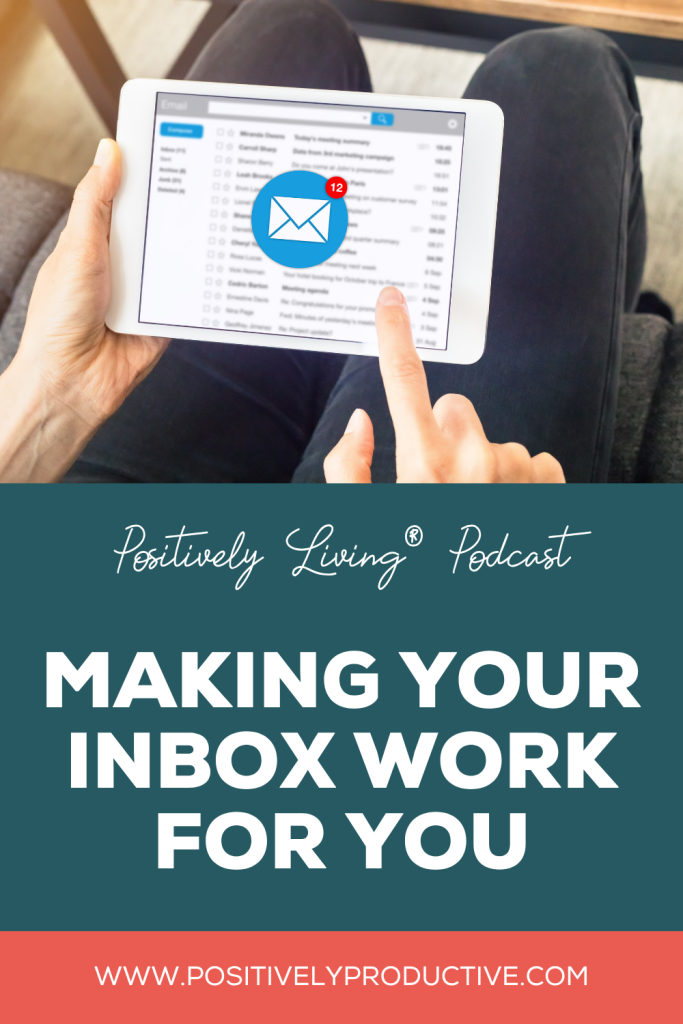
This week, episode 311 of the Positively Living® Podcast is about how to organize your inbox so it stops being a source of stress and starts being a system for living well!
In this episode of the Positively Living® Podcast, I share how to use filters, labels, and strategic forwarding to ensure your inbox supports your real life.
Making Your Inbox Work for You: From Chaos to Clarity
Last week, we focused on clearing out the digital clutter by unsubscribing and using the “Old Inbox” archive strategy. If you are starting here today, don’t worry—these tactics work whether your inbox is freshly cleared or still a bit chaotic. Today, we are moving from cleanup to construction. We are building a system that helps your email handle community commitments, family logistics, and client work without them all competing for your attention. Your inbox should be a tool that helps you function efficiently and live well.
Let Your Inbox Sort Itself
The most powerful way to organize your email is through filters and rules. A filter is an instruction you give your platform: when an email meets your criteria, it automatically takes a specific action. For example, I serve as the president of a library board and chair a committee. These roles generate many important emails that can create noise in my personal inbox. By filtering them directly into their own folders, they are out of the way when I don’t need them but ready when I do.
Take Action
- Set up filters based on specific senders, subject keywords, or dedicated email addresses.
- Choose an automatic action, such as applying a label, skipping the inbox, or archiving.
- Pick two or three categories, such as a child’s school or a volunteer group, to filter by first.
- Use your platform’s settings to automate the sorting process in minutes.
Making Things Findable with Intuitive Folders
Filters need a place to send your messages, which is where labels and folders come in. The key is to make these folders functional and intuitive based on how you actually look for information. Do not overcomplicate this by creating a folder for every single thing, as that just creates a new form of overwhelm. Instead, let your natural search behavior guide you. If you search by topic, make a folder for that topic; if you search by sender, organize that way instead.
Take Action
- Create folders for major life categories, such as volunteer work, receipts, medical, and family activities.
- Use larger, intentional categories rather than anticipate every possible tiny sub-folder.
- Start with a few categories that either need to be kept together or separated from the primary pack.
- Rely on your search behavior to determine if a folder is truly necessary.
Routing Email to the Right Place
Forwarding is a tool that works in two directions: people and systems. You can automatically forward emails to family members or team members to keep them in the loop without doing it manually. For example, my son’s college financial aid emails are forwarded to me as a backup so neither of us misses anything. You can also forward to systems like task managers. I use Todoist because it lets me turn any email into a task directly from my inbox, which is perfect for client requests that need follow-up.
Take Action
- Set up automatic forwarding for collaborators or family members on specific topics.
- Use a task manager like Todoist, Asana, or ClickUp to track action-oriented emails.
- Check the Gmail integration features in your task manager to turn emails into tasks without manually forwarding them.
- Visit my resources page for links to project management tools that support your workflow.
Your Built-In Follow-Up Flag
Most platforms have a starring or flagging function that acts as a simple signal for items that need your attention later. This is a lightweight way to manage follow-ups without a separate system. If you read an invite but cannot respond yet, star it . The real power is when you filter your view by “Starred” in the sidebar. This gives you a curated list of exactly what needs your action, so you don’t have to hunt through your whole inbox.
Take Action
- Use the star icon as a signal for items you don’t want to misplace or that need a response.
- Click on “Starred” in your sidebar to see a curated list of tasks waiting for you.
- Use stars for short-term follow-ups rather than long-term storage.
- Apply the same starring logic in Google Drive to quickly find important documents.
Archive vs. Delete
It is important to know the difference between these two actions. Deleting is a confident release of anything that has served its purpose, such as newsletters or expired promotions. Archiving is for intentional preservation of things like contracts or meaningful exchanges that you want to keep accessible but out of your primary view. If you archive indiscriminately, your archive becomes useless and wastes storage space.
Take Action
- Delete receipts for small purchases and notifications that are no longer relevant.
- Archive items you genuinely believe you might need later, like confirmations or contracts.
- Release any emails where you can find the information elsewhere.
- Avoid archiving out of fear or to avoid a decision; be intentional about what you save.
Final Thoughts
I’ll leave you with this: your inbox is not a to-do list. It is a communication tool meant to move information so you can make decisions. When you set up filters, labels, and starring, your inbox starts working for you. If sorting through email feels like too much work, I encourage you to pick just one tip from today and try it.
If you want support with setting up your specific folders or connecting your email to your other systems, I would love to help you during a Clarity Call. You can book a time that works for you on my coaching page.
Now, go pick one filter and set it up!
Learn more about Positively LivingⓇ and Lisa at https://positivelyproductive.com/podcast/
Stop trying to fit into someone else’s productivity rules! Grab my free Productivity Toolkit, a collection of workbooks designed to help you explore how you work, uncover what truly matters to you, and create your very own energy-friendly systems. Get it here: www.positivelyproductive.com/plpkit
CONNECT WITH LISA ZAWROTNY:
LINKS MENTIONED IN THIS EPISODE:
Ep 310: Easy Ways to Declutter Your Inbox
Tech Tools Playlist
(Find links to books/gear on the Positively Productive Resources Page.)
Dance Song Playlist V1, V2, V3
Music by Ian and Jeff Zawrotny
Start your own podcast with Buzzsprout!